
An org chart that follows your HR data
Your org chart is only as good as the data behind it. Load it the way your process already works, then see at once what needs fixing.
Request a free trialSee all features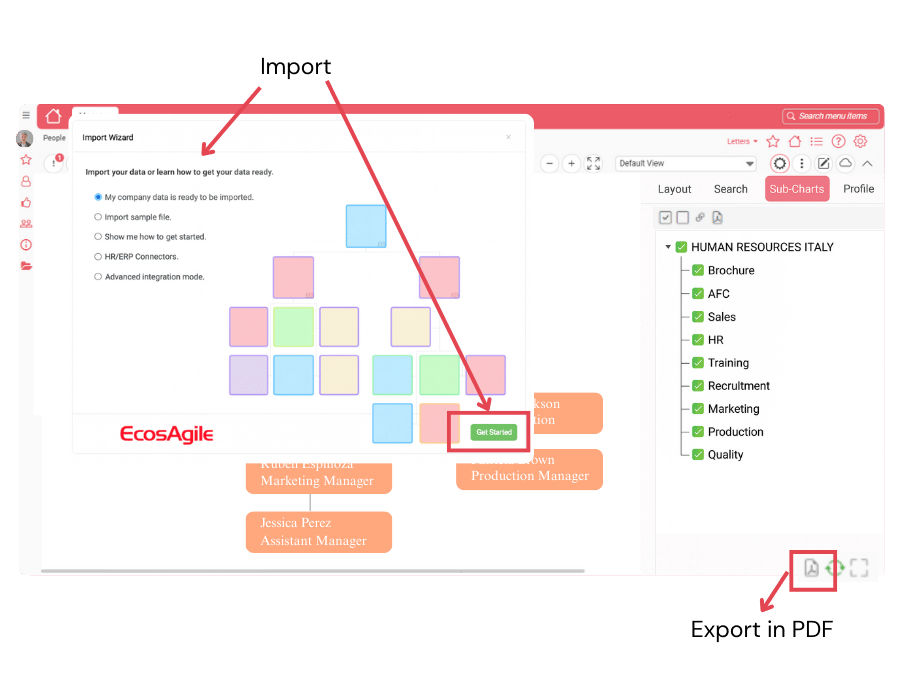
Five ways to load your data
Pick the one that fits the way your HR data already moves.
CSV upload
Upload a CSV file from the chart page.
Excel template
Add rows by hand or load them in bulk.
Scheduled file transfer (SFTP)
Your HR system exports its file, and the chart is updated every night without anyone touching it. We set it up with you.
EcosAgile People
Automatic update when you manage employee master data there.
API
Send standard and custom fields straight from your systems.
Not sure which one fits?
Every method keeps the chart aligned with your HR data. We help you pick the one that fits your process.
Map once, confirm, load
The Import Wizard guides you from your file to the chart.
Choose your source system
In the Import Wizard, pick the system your data comes from.
Review the matching
See how your columns match OrgChart Agile fields. Fields you do not import can be deactivated.
Confirm and load
Confirm the mapping and load. Your chart is updated.
See what is missing
Your chart tells you where the data needs attention, right after you load it.
People not in the hierarchy
A badge on the chart shows how many people are not attached to the hierarchy, because their manager is not in the data. Open the list and fix the reporting line.
Duplicates in the import log
Duplicate records in an import are reported in the import log, so you know exactly which IDs to correct.